Why Is My Website Not Indexed by Google? (And How to Fix It)
Home / Blog
Your website may not be indexed by Google because search engines cannot properly crawl your pages, access important URLs, or find enough signals to include them in search results.
Google indexing depends on factors, including technical accessibility, crawl permissions, website structure, content quality, and external signals. Problems such as blocked robots.txt rules, incorrect noindex tags, missing sitemaps, or crawl errors can prevent pages from appearing in Google Search.
Before making changes, confirm your indexing status by using the site:yourdomain.com search operator and reviewing reports in Google Search Console. These tools show whether Googlebot can access your pages and whether specific URLs have indexing restrictions.
This guide covers the main reasons Google may not index your website and explains practical solutions for resolving crawling, technical, and content-related problems.
How to Check If Your Website Is Indexed by Google
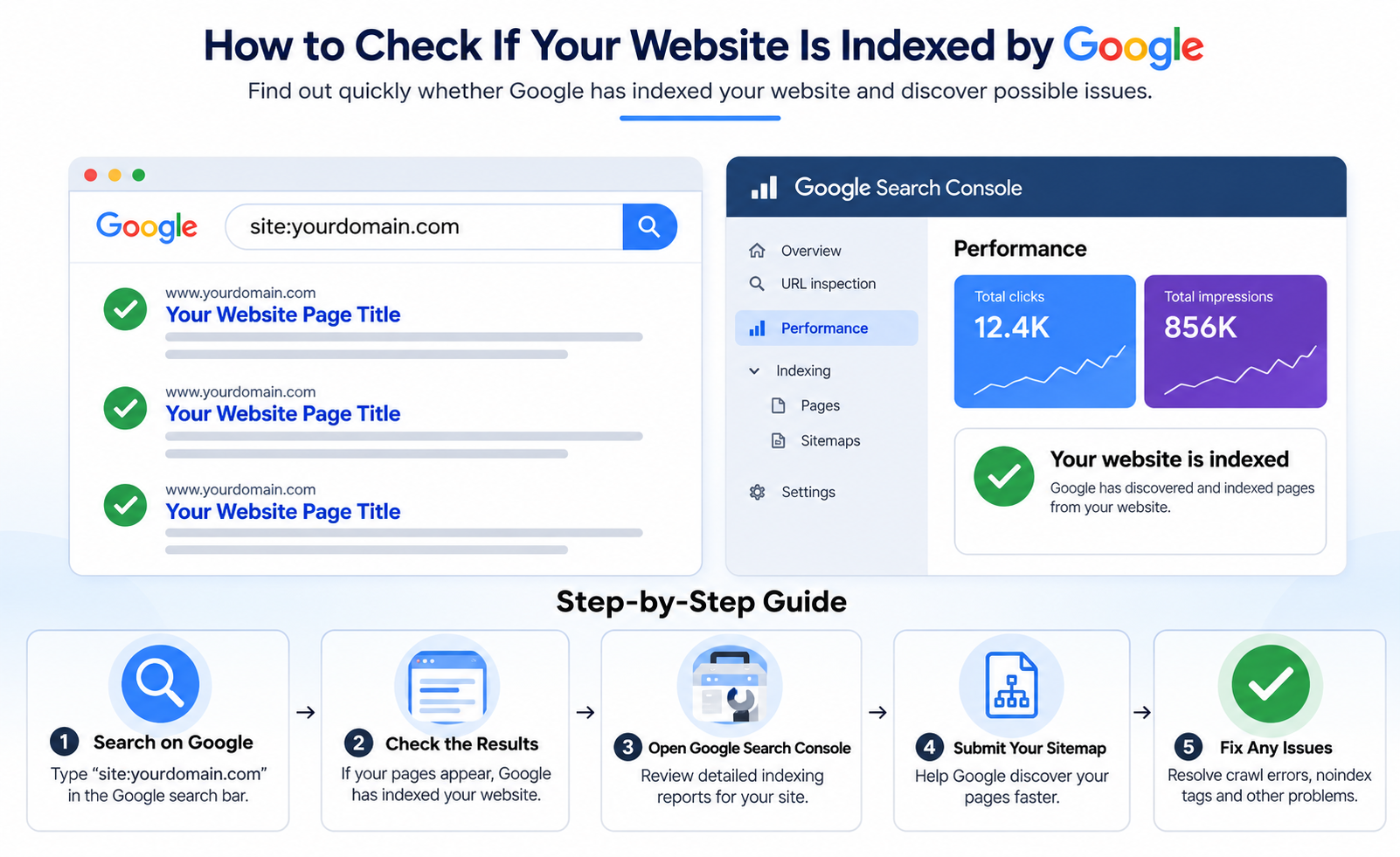
You can check whether Google has indexed your website by searching "site:yourdomain.com" in Google.
When your website pages appear in the search results, Google has already indexed your domain. Individual URLs may still be missing, but the website itself is included in Google's index.
No pages appearing in the results may indicate that Google has not indexed your website yet. Review your indexing status in Google Search Console to find possible crawl or indexing problems.
New websites are not always indexed immediately. The time required depends on factors such as website accessibility, crawlability, sitemap availability, backlinks, and content quality.
For newly launched websites, submit your sitemap through Google Search Console and ensure Google can access your important pages.
Common Reasons Google Isn't Indexing Your Website
1. Your Website Is Blocked from Indexing
Your website will not appear in Google search results if search engines are blocked from crawling or indexing your pages.
Many CMS platforms, including WordPress, Shopify, and Wix, include settings that can prevent search engines from indexing a website. These options are helpful during development, but they can create indexing issues if they remain active after launch.
In WordPress, go to Settings > Reading and find the option called “Discourage search engines from indexing this site.” If this option is enabled, turning it off allows search engines to access and index your website pages.
Your robots.txt file can also prevent Google from crawling your website. This file manages crawler access and is usually available at:
"yourdomain.com/robots.txt"
If your robots.txt file contains:
User-agent: *
Disallow: /
Google and other search engines are blocked from crawling your entire website.
Remove the Disallow: / rule or adjust your robots.txt settings to allow search engines to access the pages you want indexed.
2. Your Website Has No Backlinks or Discovery Signals
A website without backlinks or external signals can be harder for Google to discover and crawl.
Google uses internal links, external backlinks, and submitted sitemaps as discovery signals when finding new pages. When other websites do not link to your domain, search engines have fewer ways to discover your content.
This issue commonly affects new websites because they often have no existing references from external sources. High-quality content alone does not guarantee discovery if Google cannot find clear crawling paths or signals.
External signals that can support discovery include:
-
Relevant website links from industry blogs, partner websites, or resource pages
-
Business directory listings from platforms such as local directories or professional listings
-
Online mentions from trusted profiles, communities, or industry websites
Creating natural links and earning external references can give search engines more paths to find important pages on your website.
3. You Haven't Submitted Your Sitemap to Google
Your website may take longer for Google to discover if you have not submitted a sitemap through Google Search Console.
An XML sitemap is a file that contains important website URLs and helps search engines identify pages available for crawling. Submitting a sitemap does not guarantee indexing, but it gives Google a structured list of pages it can discover.
Most CMS platforms, including WordPress, Shopify, and Wix, can automatically generate an XML sitemap. Larger websites may also use a sitemap index file to manage multiple sitemap files.
Your sitemap is usually located at:
"yourdomain.com/sitemap.xml"
To submit your sitemap:
-
Create or locate your sitemap URL.
-
Open Google Search Console.
-
Go to the Sitemaps section.
-
Enter your sitemap URL and submit it.
Google Search Console also provides reports for indexing status, excluded pages, crawl problems, and URL issues that may stop pages from appearing in search results.
4. Your Pages Have Noindex Tags
A noindex tag prevents search engines from adding a page to their index. As a result, the page will not appear in Google search results.
A noindex tag is an HTML instruction placed inside a page's <head> section:
<meta name="robots" content="noindex">
When Google detects this instruction, it understands that the page should not be included in search results.
Noindex tags are useful for pages that are not created for search traffic, including thank-you pages after form submissions, login pages, and internal search pages.
The issue starts when noindex tags are accidentally added to important pages such as your homepage, service pages like AC repair pages, product pages, or educational blog articles.
You can identify unwanted noindex tags by checking your page source code or using SEO crawling tools such as Screaming Frog. These tools can scan URLs and find pages that are blocked from indexing.
5. Crawl Errors and Technical SEO Problems Blocking Indexing
Crawl errors and technical SEO issues can stop Google from accessing, crawling, and indexing your website pages.
Problems such as server errors, blocked resources, incorrect redirects, HTTP status code errors, and accessibility issues can prevent Googlebot from reaching and processing your content correctly.
Common technical issues that affect indexing include:
-
Slow loading pages that delay crawler access and reduce crawl efficiency.
-
5xx server errors that prevent Googlebot from retrieving page content.
-
Redirect chains where multiple redirects make it harder for crawlers to reach the final URL.
-
Broken internal links that point to deleted pages or incorrect URLs.
-
Duplicate content such as copied product descriptions or repeated category pages that create indexing confusion.
Google Search Console's Pages report can help identify crawl errors, indexing exclusions, blocked URLs, and pages that Google cannot process correctly.
Review these reports regularly to find URLs with access problems, crawling restrictions, or indexing issues.
6. Thin or Low-Quality Content
Google may exclude thin or low-quality pages from search results when they do not provide original information, complete answers, or content that satisfies search intent.
Thin content includes pages with limited information, copied text, or content that does not fully address what users are searching for. Examples include short FAQ pages with incomplete answers, duplicated manufacturer descriptions, and empty category pages with little original value.
Pages with highly repetitive templates may still be crawled by Google but excluded from indexing. Examples include location pages that only change city names or automatically generated pages with nearly identical content.
You can improve thin content by adding:
-
Original insights based on experience, research, or expert knowledge.
-
Detailed explanations that answer user questions completely.
-
Useful examples that help readers understand the topic.
-
Practical information that solves specific user problems.
Pages that offer complete, original, and helpful information send stronger signals to Google that they provide value to search users.
7. Domain History, Manual Actions, and Previous Penalties
A domain with previous penalties, spam activity, or manual actions can experience indexing problems because Google may still associate the domain with earlier issues.
Previously owned domains can carry historical problems that affect their visibility in search results. These issues may include Google manual actions, unnatural backlinks, spam content, hacked pages, or previous guideline violations.
Google Search Console can show whether your domain has active problems. Check the Security & Manual Actions section to find warnings related to penalties or security issues.
If Google applies a manual action to your domain, review the reported issue, remove violating content or links, and submit a reconsideration request after completing the necessary fixes.
A domain history without unresolved penalties lowers the chances of indexing restrictions caused by previous website problems.
A Quick Diagnostic Checklist
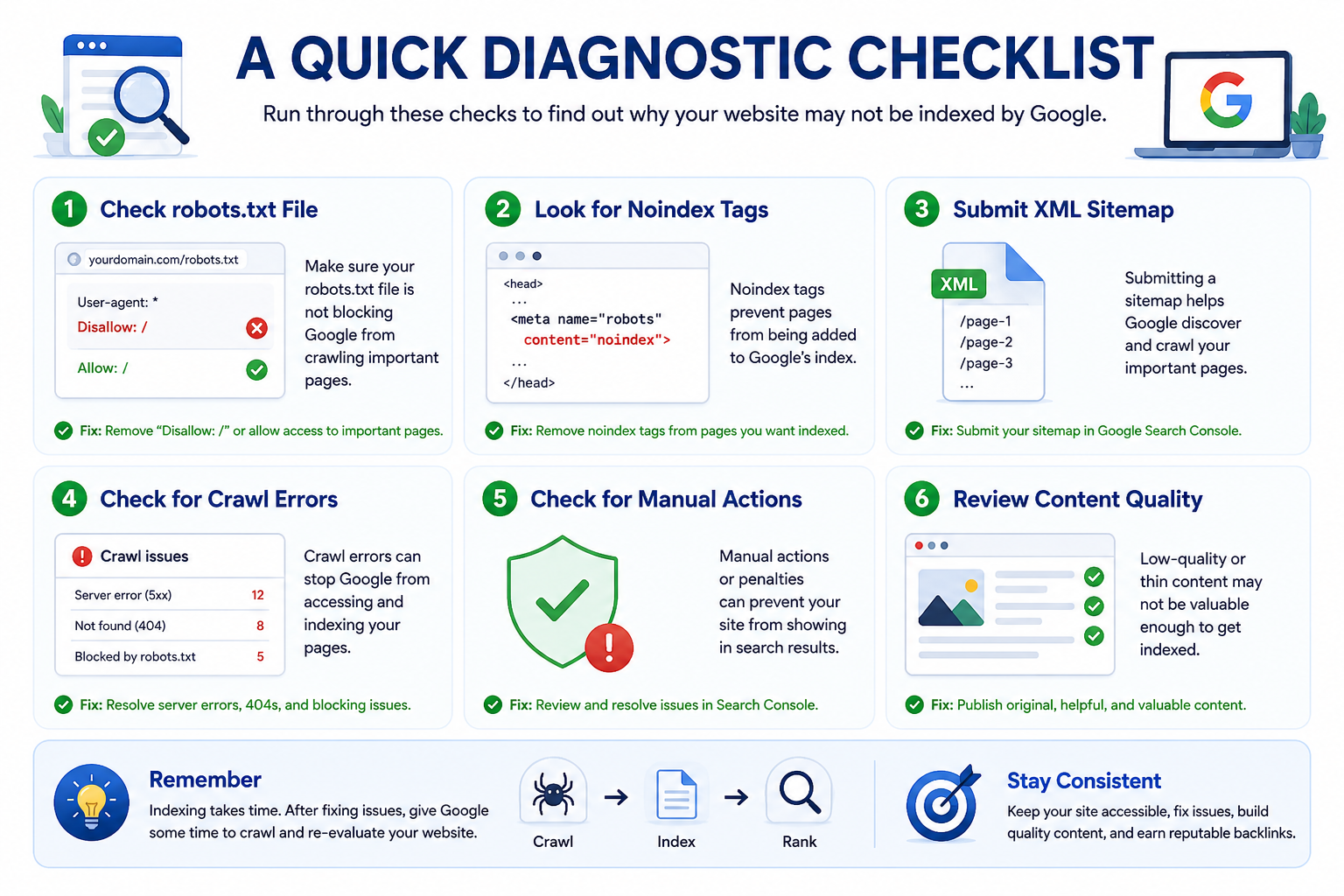
This checklist helps identify common technical, crawling, indexing, and content problems that prevent Google from indexing your website.
Use the checklist below to review the main areas that affect indexing:
|
Check |
What to Look For |
Where to Check |
|
Robots.txt |
Disallow: / blocking Googlebot access |
yourdomain.com/robots.txt |
|
CMS settings |
Search engine blocking settings enabled in platforms like WordPress, Shopify, or Wix |
CMS settings panel |
|
Noindex tags |
Pages containing <meta name="robots" content="noindex"> |
Page source code or Screaming Frog |
|
Sitemap status |
Sitemap submitted correctly and accessible |
Google Search Console > Sitemaps |
|
Manual actions |
Active penalties caused by spam content, unnatural links, or policy violations |
Google Search Console > Manual Actions |
|
Crawl errors |
500 server errors, redirect loops, or blocked pages |
Google Search Console > Pages report |
|
Content quality |
Thin pages, copied descriptions, or pages with limited user value |
Manual content review |
How to Help Google Discover Your Pages After Fixing Issues
You can help Google discover and process your pages by requesting indexing, improving external signals, promoting important URLs, and keeping your content updated.
Once technical issues are fixed, check that Google can access your pages and understand which URLs are the most important on your website.
Request Indexing Through Google Search Console
Google Search Console allows website owners to submit individual URLs for crawling. Add the page URL to the URL Inspection tool and click Request Indexing.
This step does not guarantee that a page will appear in search results, but it tells Google that the URL is ready for crawling and review.
Earn Relevant Backlinks
Backlinks from trusted websites can create more ways for Google to discover your pages. Examples include industry publications, partner websites, resource pages, and professional directories.
These relevant external links also help search engines understand that other websites find your content valuable and reference your pages.
Promote Important Pages
Sharing content through relevant channels can create additonal discovery opportunities. Examples include LinkedIn posts, Reddit discussions, industry forums, and professional communities.
External mentions and references can help Google find URLs that may not yet have strong internal links or external signals..
Keep Content Updated
Updated pages provide clearer and more useful information for both users and search engines. Content improvements may include adding recent data, refreshing outdated sections, correcting errors, and expanding explanations.
Regular content maintenance helps important pages remain accurate, relevant, and useful over time.
When Does Your Website Need Further Indexing Investigation?
You should investigate deeper indexing problems when your website remains unindexed after fixing technical errors, crawl issues, and content quality problems.
Most indexing issues come from problems such as blocked crawling, incorrect settings, missing signals, or low-quality pages. After these areas are corrected, Google still needs time to recrawl your website and evaluate the updates.
If your website does not appear in Google after resolving common indexing problems, look for deeper issues such as manual actions, spam history, crawl restrictions, or weak website signals. These signals can include poor internal linking and limited external references.
Google does not index every webpage because it evaluates whether pages provide useful, original, and relevant information before showing them in search results.
A page may remain excluded from the index if it lacks unique information or does not satisfy user search intent. Even a technically accessible website needs content that clearly addresses what users are looking for.
Pages with complete information and resolved technical barriers give Google stronger signals for crawling, processing, and evaluation.
FAQs
How Do I Submit My Website to the Google Index?
Create a sitemap and submit it through Google Search Console. You can also use the URL Inspection tool to request crawling for individual pages. This does not guarantee indexing, but it helps Google discover your URL.
What Is the Average Time for a New Website to Be Indexed by Google?
A new website may take different amounts of time to be indexed depending on crawl frequency, website accessibility, sitemap availability, backlinks, and technical setup. Google does not provide a fixed indexing timeline, so improving crawlability and removing technical barriers can help pages get discovered.
Why Is My Website Not Showing Up in Google Search Results?
Your website may not appear in Google search results because of blocked robots.txt rules, noindex tags on important pages, incorrect CMS settings, missing backlinks, or thin content such as short and duplicate pages. Check Google Search Console and use the site:yourdomain.com search operator to identify indexing problems.
What Is a Noindex Tag and How Does It Affect Indexing?
A noindex tag is an HTML instruction placed in a page’s <head> section that tells search engines not to include the page in search results. Noindex tags are useful for private pages like admin areas or thank-you pages but can prevent important pages from being indexed.
Does Google Search Console Help With Indexing Problems?
Google Search Console helps website owners monitor indexing status, identify crawl problems, review manual actions, and submit URLs for crawling. The platform provides reports related to sitemap status, excluded pages, indexing issues, and website accessibility problems.
Conclusion
A website may not be indexed by Google because of crawl restrictions, technical errors, missing signals, noindex tags, sitemap issues, or low-quality content. Begin by identifying the specific cause through Google Search Console, reviewing your robots.txt settings, and checking important website pages.
Fixing indexing problems requires making your website accessible to Googlebot, improving technical SEO, submitting a sitemap, and ensuring your pages provide useful and original information. After making these changes, give Google time to recrawl your website and evaluate the updates.
A well-optimized website with clear technical signals, helpful content, and a strong internal structure has a greater chance of being discovered and indexed in Google Search.
Stay Ahead in Digital Marketing
Get exclusive insights, trends, and strategies delivered straight to your inbox. Subscribe now!
Web Genie
Driving Digital Growth with Innovation & Strategy
Quick Links
Contact Info
- info@webgenie.io
- +44 7472 732550
- Office 1009 85 Dunstall Hill, Wolverhampton, United Kingdom, WV6 0SR
Social Media
© 2025 Web Genie, All Rights Reserved.